Qatar Visa Print Online 2026: Download Your MOI Visa Copy in Minutes
When your approval comes through, getting a Qatar visa print online copy is your top priority before travel. The problem most travelers run into is not the visa itself, it is finding the exact section on the Ministry of Interior (MOI) portal without wasting twenty minutes clicking through confusing menus. This guide cuts straight to the exact steps you need right now, completely verified against the current 2026 MOI portal interface.
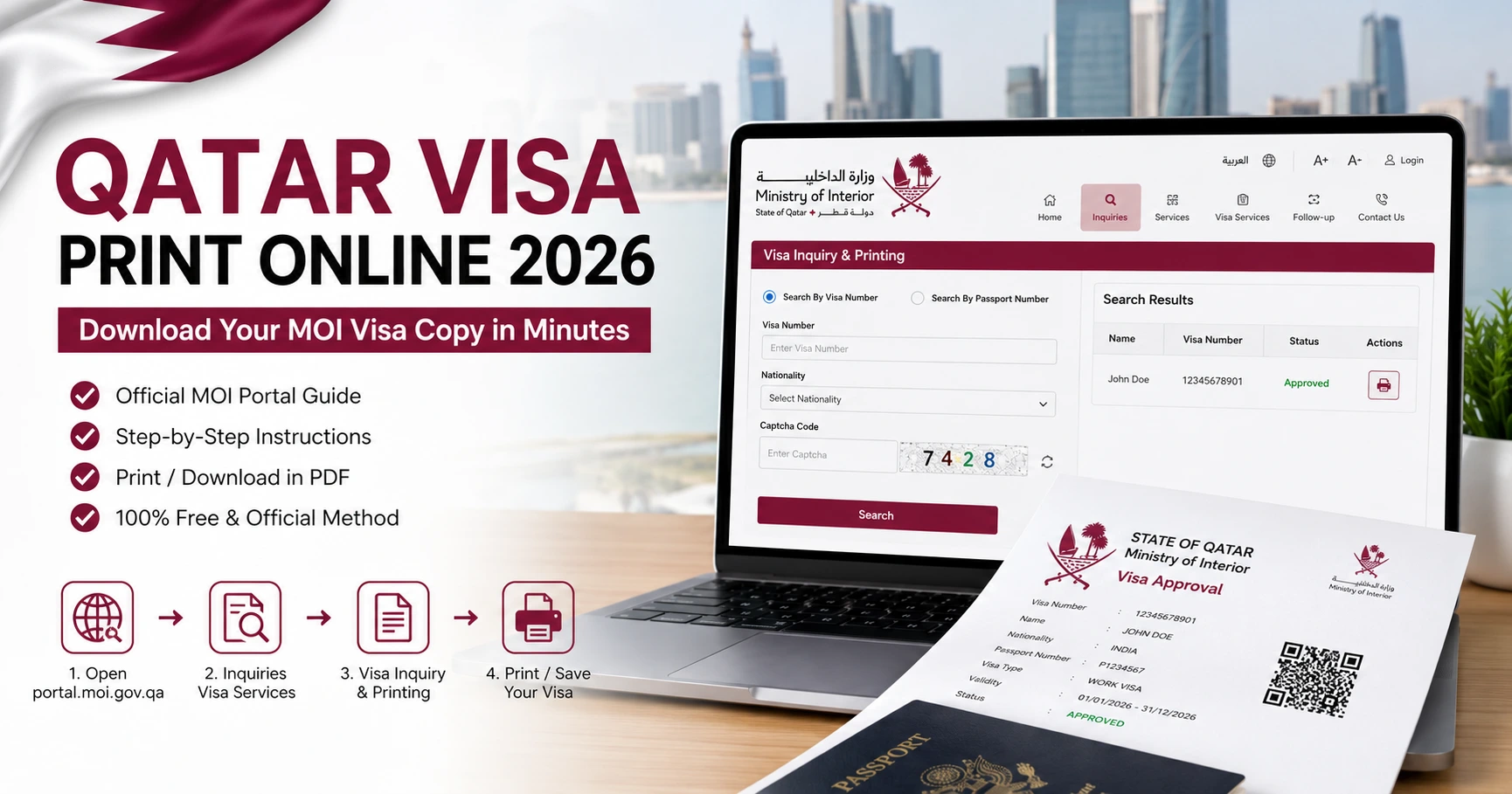
Quick Answer: Open portal.moi.gov.qa, click on the Inquiries icon, then select Visa Services, and click Visa Inquiry & Printing. Enter your visa number or passport number, pass the security verification, and click the print icon next to your approved record to save it as a PDF. If you haven’t checked your status yet, you must complete your qatar visa check first to ensure it shows “Approved” before attempting to download the copy.
What You Need Before You Start
Before opening the official government portal, make sure you have your primary details ready. Hunting for documents mid-session can cause the official server to time out, forcing you to restart the verification process.
Having the sponsor QID is the exact step most people miss when trying to look up their status. If you applied through a recruitment agency, they hold this number. If it is a family-sponsored visa, your relative residing in Qatar can easily find it printed on their physical residency card. However, remember that if you possess your exact Visa Number, you can complete the print process without needing the sponsor QID.
Simple Methods for Qatar Visa Print Online via the MOI Portal 2026
The latest version of the MOI portal features a clean icon-based dashboard. If you are following outdated screenshots from past years, the paths will look different. Follow these step-by-step instructions for a smooth download.
Step 1: Open the Official MOI Portal
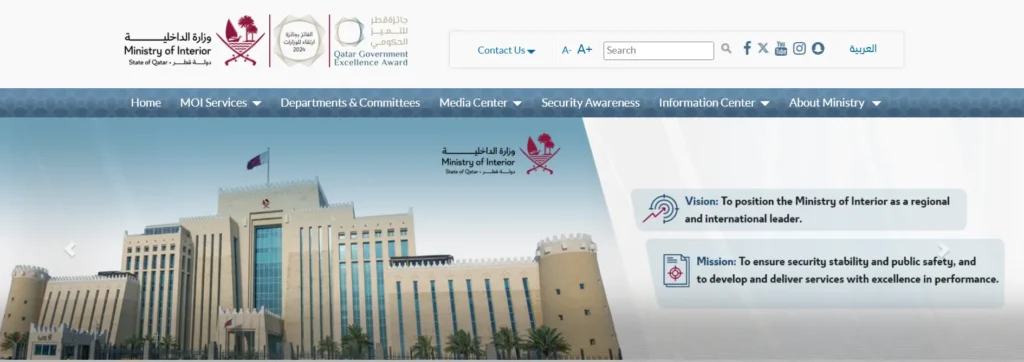
Navigate to portal.moi.gov.qa in your browser. Google Chrome or Microsoft Edge render the official government print function perfectly. If you are using Safari on iOS, you might face minor PDF layout shifts, so using a desktop or an Android device is highly recommended for printing.
Step 2: Access the Inquiries Dashboard
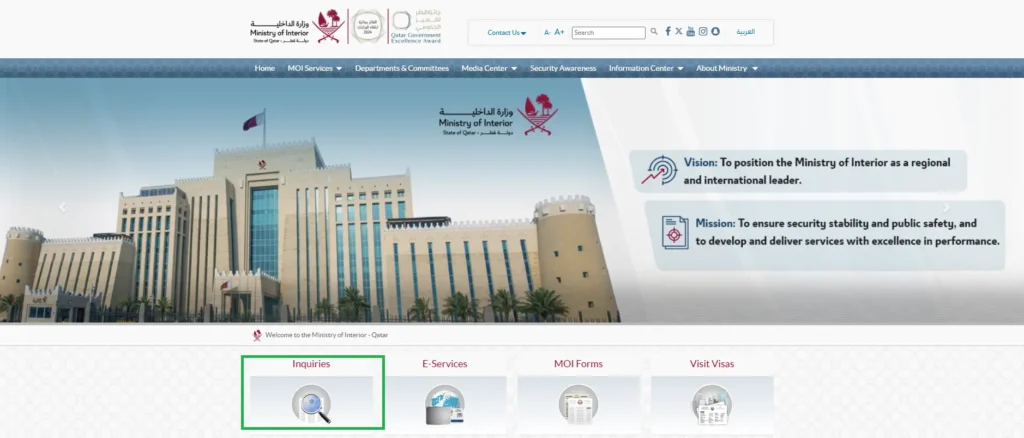
Once the homepage loads, switch the portal language to English from the top-right corner if needed. Look at the main grid of services on the screen and click on the Inquiries icon, which is represented by a magnifying glass over a document.
Step 3: Select Visa Services
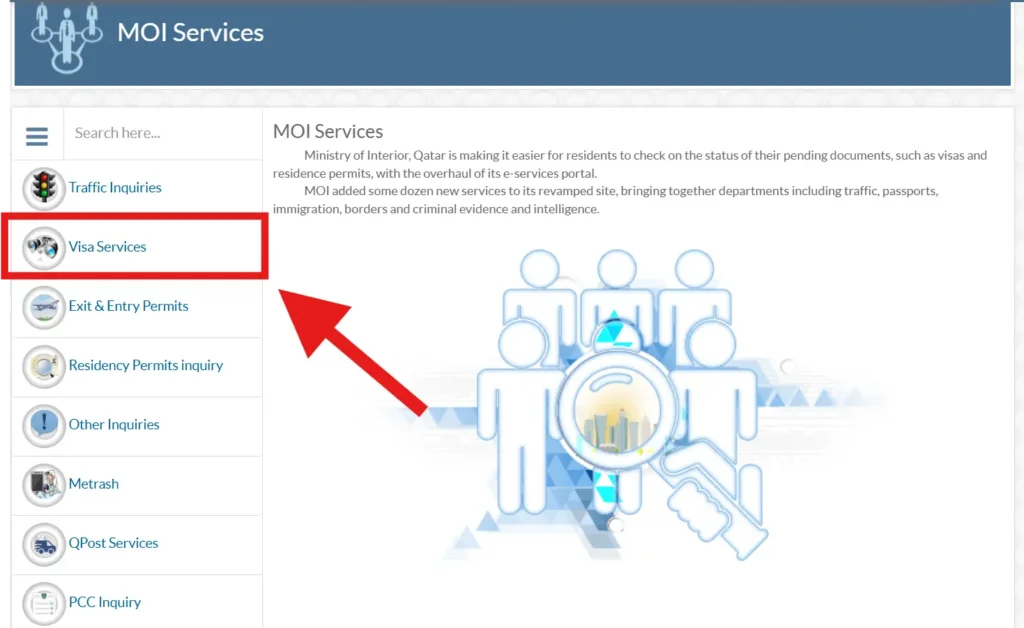
Inside the Inquiries section, you will see a list of sub-categories on the left sidebar or main grid. Click on Visa Services. This opens the dedicated tracking and printing applications dashboard.
Step 4: Choose Visa Inquiry & Printing
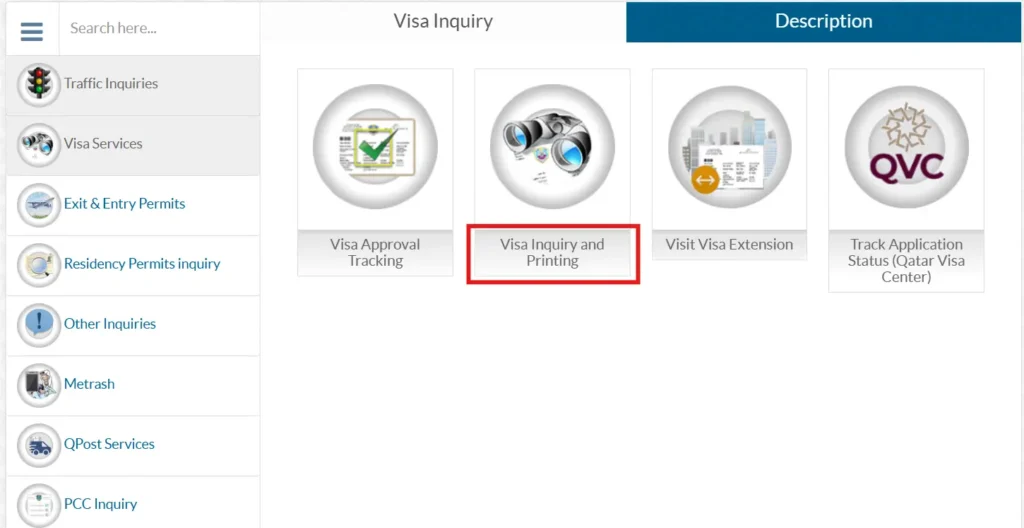
From the available options, select Visa Inquiry & Printing. This is a specific action-oriented portal designed to generate official visa copies. Do not confuse this with generic status checks, as those modules only display data without offering download options.
Step 5: Enter Your Document Information
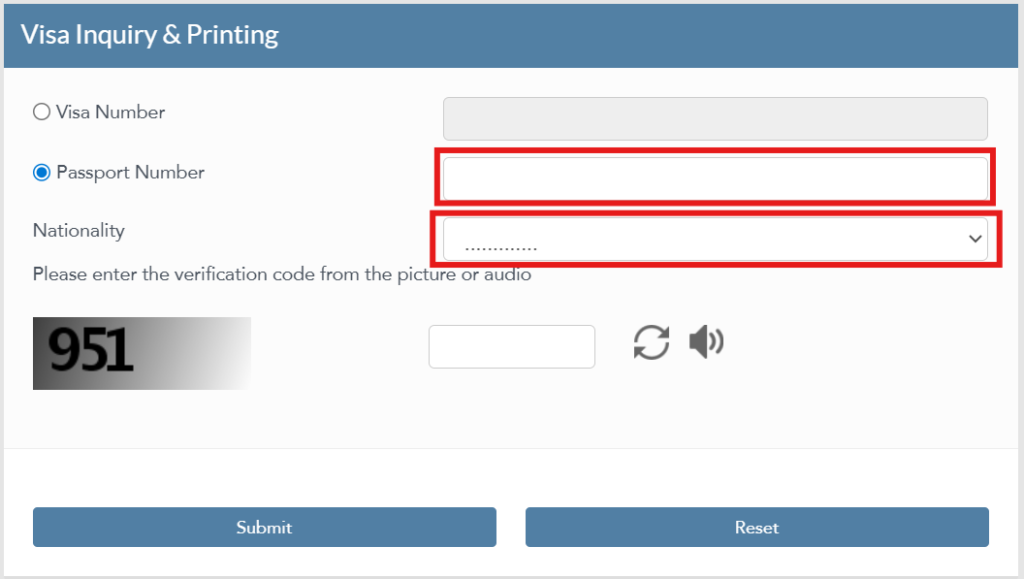
You can now choose to search using your Visa Number or Passport Number. Choose your preferred method, select your correct nationality from the dropdown menu, and enter the security captcha code shown on the screen. If you choose the passport route, ensure you enter the sponsor QID in its respective field.
Step 6: Click Search and Generate PDF
Click the search button. Your live visa record will appear instantly showing your name, status, and validity dates. If your status states Approved, you will see a visible print icon on the right side of the results table. Click this icon to launch the official PDF viewer overlay. You can now save it directly as a digital copy or send it to a physical printer.
The printed document contains an embedded official QR code. Customs and immigration officers at Hamad International Airport scan this QR code directly upon your arrival, meaning a clean printed A4 copy is always the safest choice for international travel.
Alternative Download Options: Metrash2 and the QVC Portal
If the main web portal is experiencing high traffic or loading slowly, you can utilize two official alternatives to fetch your valid visa copy.
Metrash2 Mobile Application
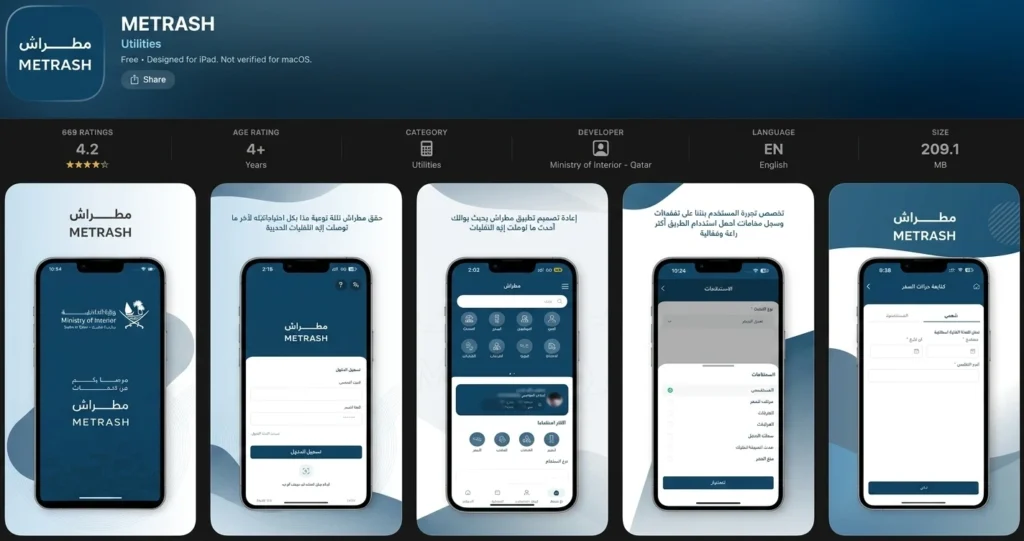
Log into the Metrash2 app on your smartphone using your active credentials. Navigate directly to Visa Services, select My Visas, and click View or Download. The digital file generated through Metrash2 is the exact same document as the web portal version and carries equal legal weight. This method is incredibly fast if your sponsor is checking the status on their phone.
Qatar Visa Center (QVC) Portal
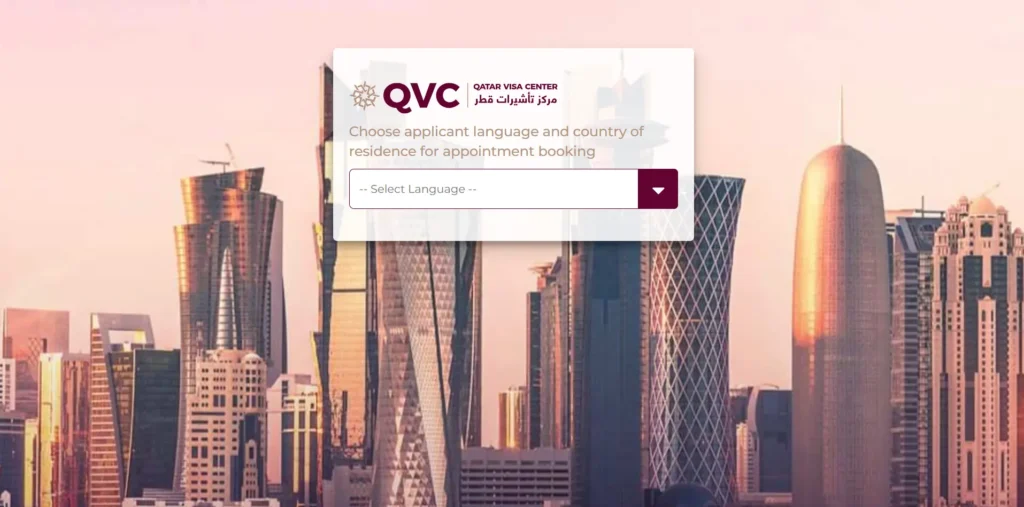
If your employment visa was processed through an official Qatar Visa Center in your home country, such as facilities in India, Pakistan, Nepal, or the Philippines, you can use the QVC tracker. Visit qatarvisacenter.com, log in with your application reference number, and look for the dedicated Download Visa button under your profile. Note that this method only works for work visas routed through QVC channels.
Please avoid using third-party websites or unofficial tracking apps that promise to download your document. Sharing your passport and visa numbers with untrusted sources poses severe privacy risks, and immigration authorities will reject any printout that does not originate from official government servers.
Troubleshooting: Common Printing Errors and Quick Fixes
If you encounter technical glitches while trying to generate your document, use these verified troubleshooting steps to resolve them instantly. Please note that if your visa has already expired, you might need to settle your Qatar visa fine before the portal allows you to generate a fresh printout.
- The print icon is greyed out: This simply means your visa application is still under review or processing. Even if your agent claims it is done, the portal print button only becomes active once the status officially transitions to Approved in the main database.
- The PDF screen loads entirely blank: This is a classic browser rendering conflict. Open your browser settings, navigate to PDF documents, and ensure that automatic inline rendering is enabled. Alternatively, clearing your cookies or switching to Google Chrome fixes this layout issue immediately.
- No record found error message: Double-check every single digit of your passport or visa number. A minor typo or selecting the wrong nationality from the dropdown menu will trigger this error. If you are using a recently renewed passport, try entering your previous passport number that was used during the initial application phase.
- Portal displays an Arabic error message: This usually happens when the portal security captcha expires. Refresh the page entirely, ensure the language toggle is set to English from the start, and enter the fresh captcha code without delay.
Frequently Asked Questions
Can I print my Qatar visa using only my passport number?
Yes, the official portal allows you to search using your passport number instead of a visa number. However, when using the passport option, the system requires you to enter your sponsor QID or application number to successfully retrieve and print the record.
Is the online printed Qatar visa copy valid at the airport?
Yes, a clean printout of the PDF generated from the official MOI portal or QVC is fully valid at all international airports and border checkpoints. The critical element is the embedded QR code on the document, which immigration authorities scan to verify your legal record.
What should I do if the MOI printing page shows an error?
Clear your browser history, switch your browser to incognito mode, and attempt the search again. If the official website remains unresponsive due to server maintenance, use the Metrash2 mobile application or check the QVC portal to access your download link.
Is there any fee to print or reprint the Qatar visa online?
No, downloading, saving, or reprinting your approved visa copy from official government channels is entirely free of charge. There are no processing fees or hidden penalties, and you can download the PDF file as many times as required.